In this module or category, you can view collectibles made from bookings. It’s group per insurance, non-insurance, and private.
In the image below, you can click the left menu under Medicash to group or filter data by insurance company, non-insurance company, or private invoices.
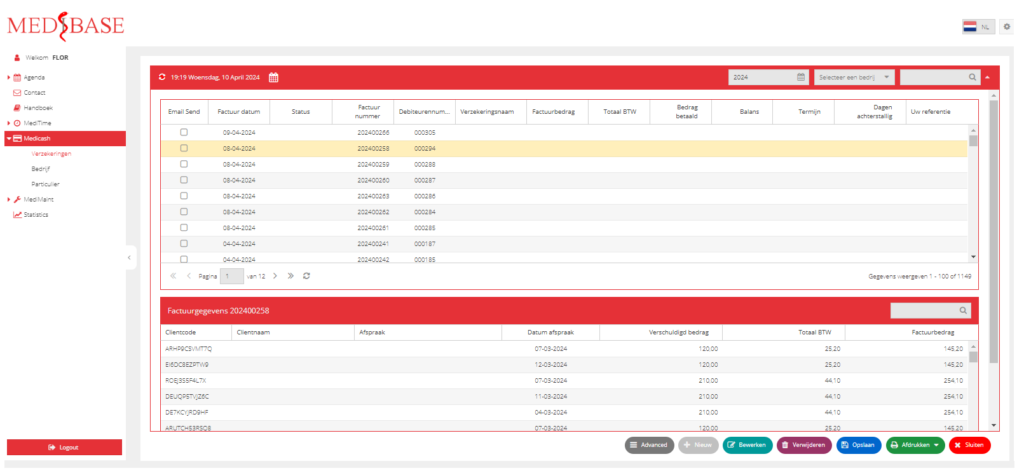
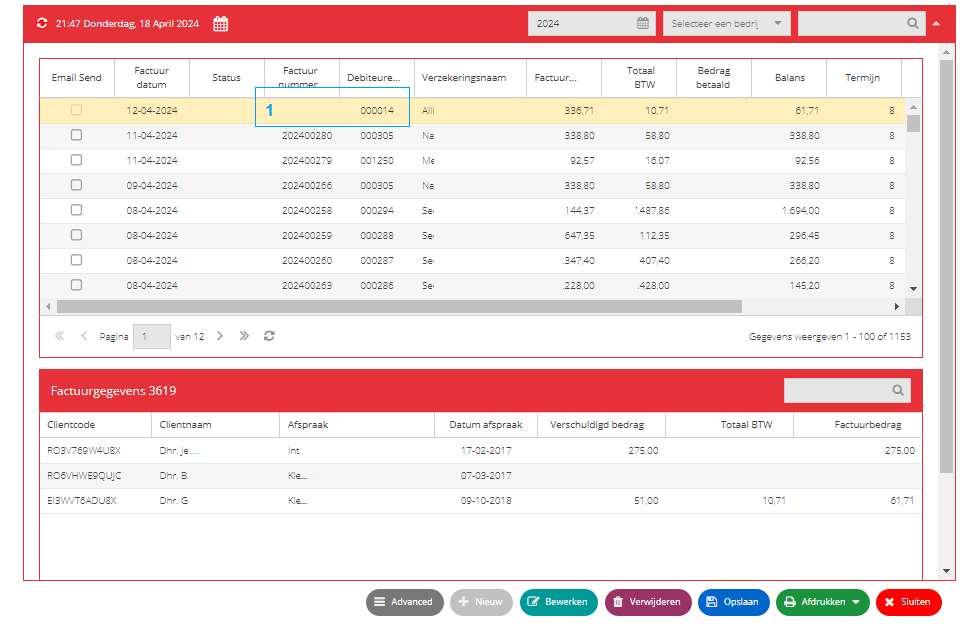
When the user click on any invoices in the above grid, it will display the list of booking under that invoice (example invoice # 202400258).
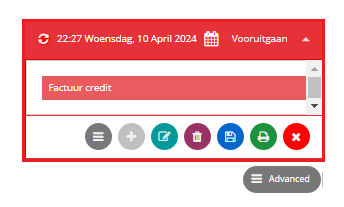
The advance button is used to credit a final invoice for adjustment. Click advance button and factuur credit.
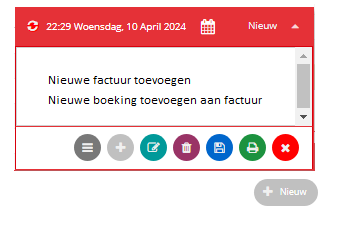
There are two options for making a new invoice:
1) Add a new invoice: this is to create a new invoice.
2) Add a new booking to the invoice; this is to add one or more bookings to the existing invoice.
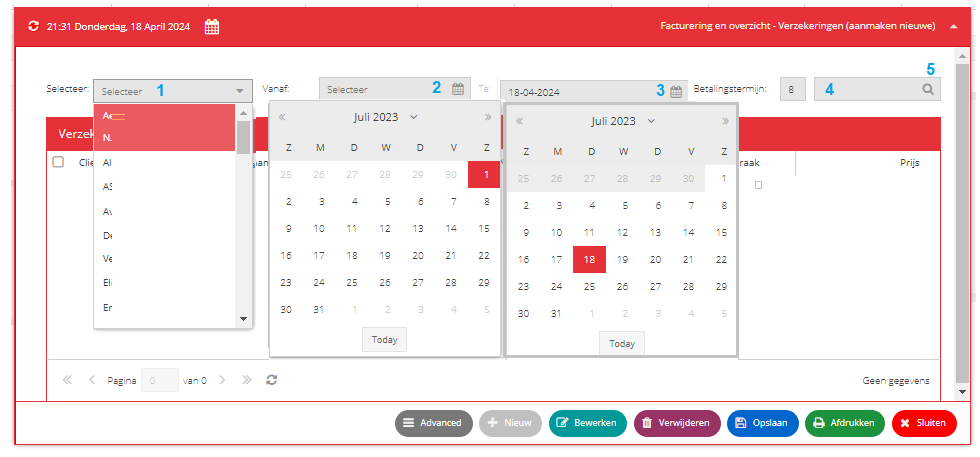
Nieuwe factuur toevoegen:
- A dropdown of a list of companies.
- Select the starting date to filter the booking data to display.
- Select the end date to filter the booking data.
- Type any text to include in data filtering (like client code, client’s name, birthday, and more).
- Click the icon to retrieve the booking based on the search condition from 1 to 5.
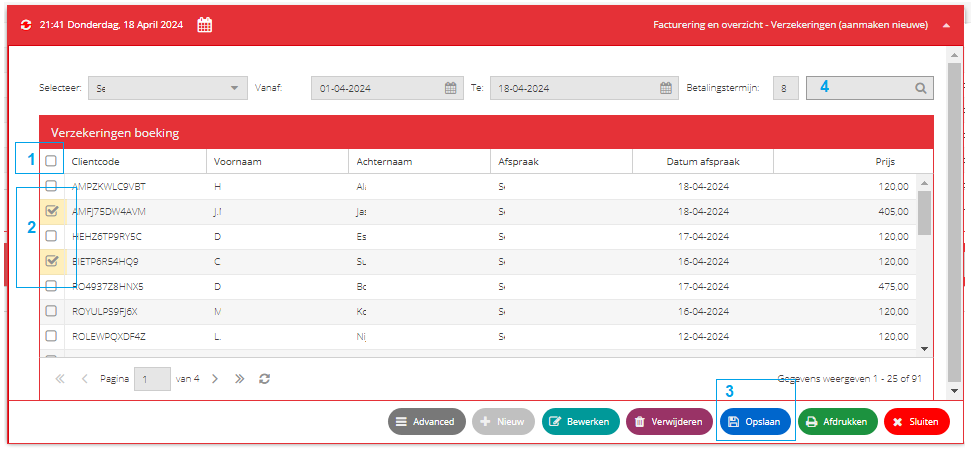
Booking data will be displayed here based on the filter condition above.
- Click the square button to select all bookings.
- Check only the booking you want to invoice.
- Click opslaan button to save your selection and the system will create a new invoice.
- You can search a clientcode and client’s name and click the icon.
After loading and selecting what booking to invoice for that specific company, the system will automatically create an invoice for that group (see #1).
You can still edit all the bookings under that invoice as long as you do not assign an invoice number.
If an invoice has an assigned number, that invoice is already final. To alter it, click the advance button and click factual credit.
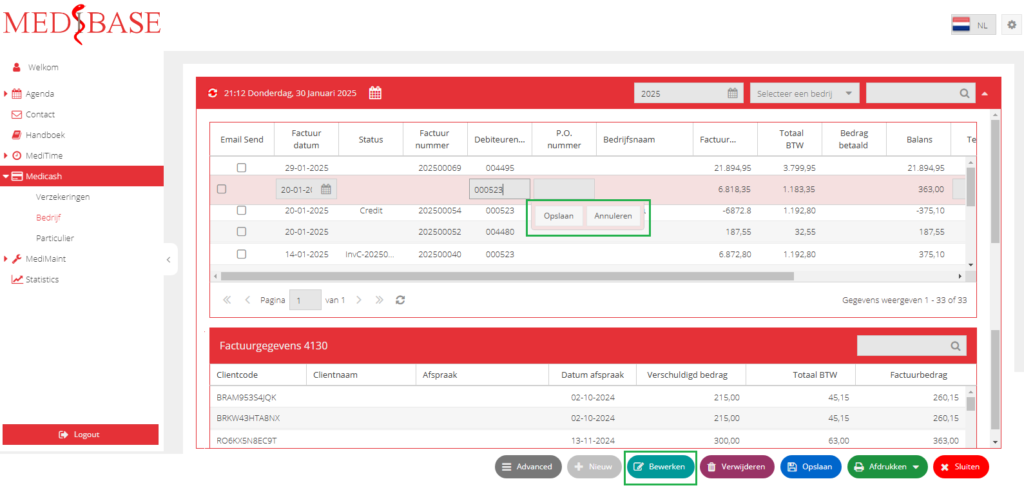
This button is used to edit an existing invoice or the list of bookings under that invoice. Just click any rows to edit, provided the invoice is not yet final (no assigned invoice number).
Below is the sample screen when you click the Bewerken button or double-click any row to edit. After adding or editing any data, click Opslaan to save or Annuleren to cancel any changes made.
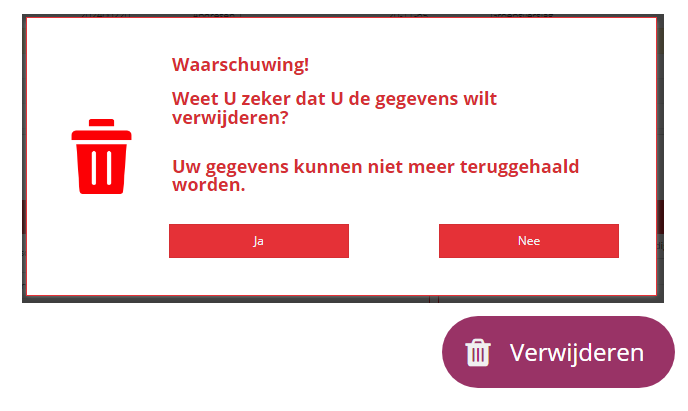
The Verwijderen/Delete button is used to delete any rows in the grid, but for some rows, this button is not allowed.
When you click…
Ja/Yes, the row is now deleted from our database.
Nee/No to cancel the deletion.

The Opslaan/Save button is used to save any changes made in adding, editing, or deleting.
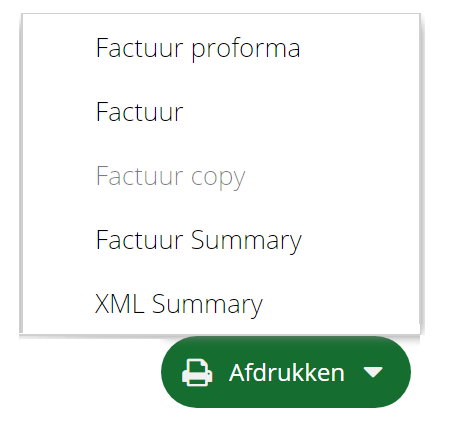
We have 5 options to print in Medicash…
1) Factuur profoma: an invoice report without an invoice number.
2) Factuur: a final invoice with an assigned invoice number.
3) Factuur copy: a copy of the final invoice.
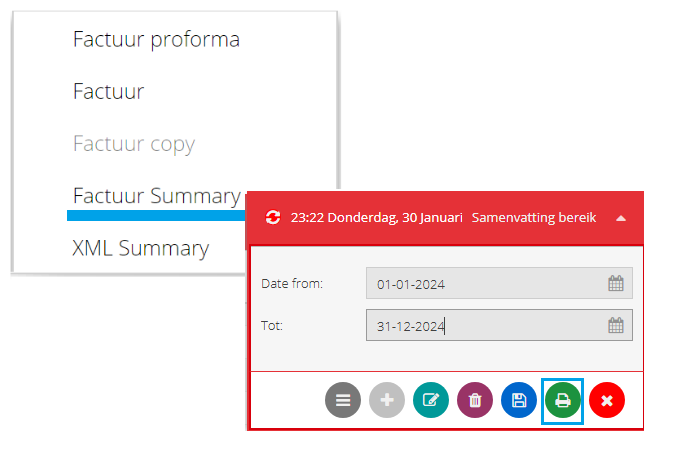
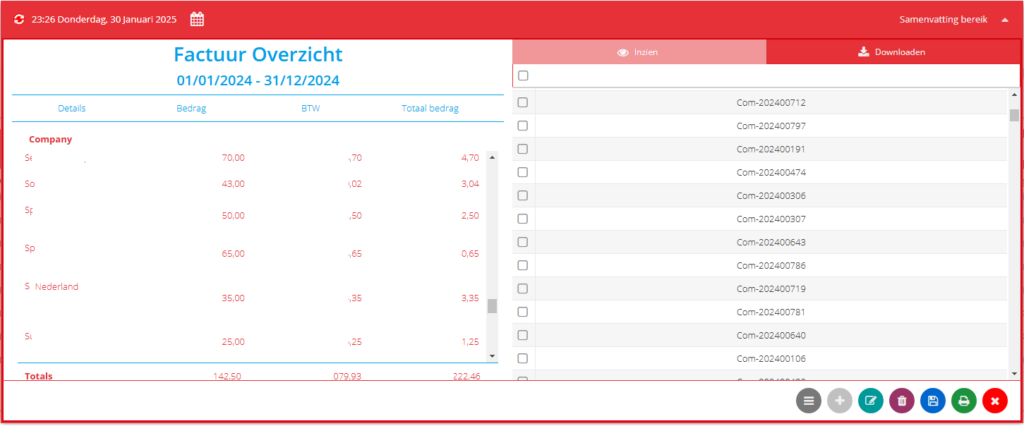
4) Factuur summary: a summary of the invoice for any given date.
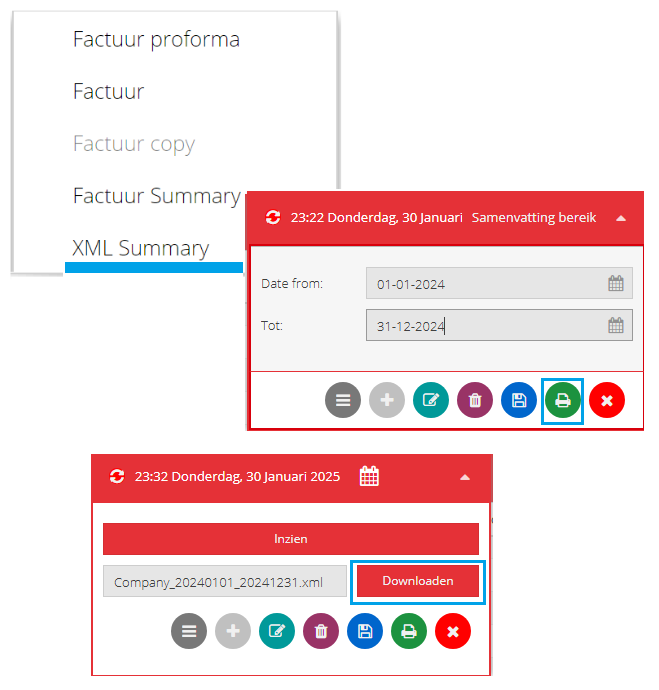
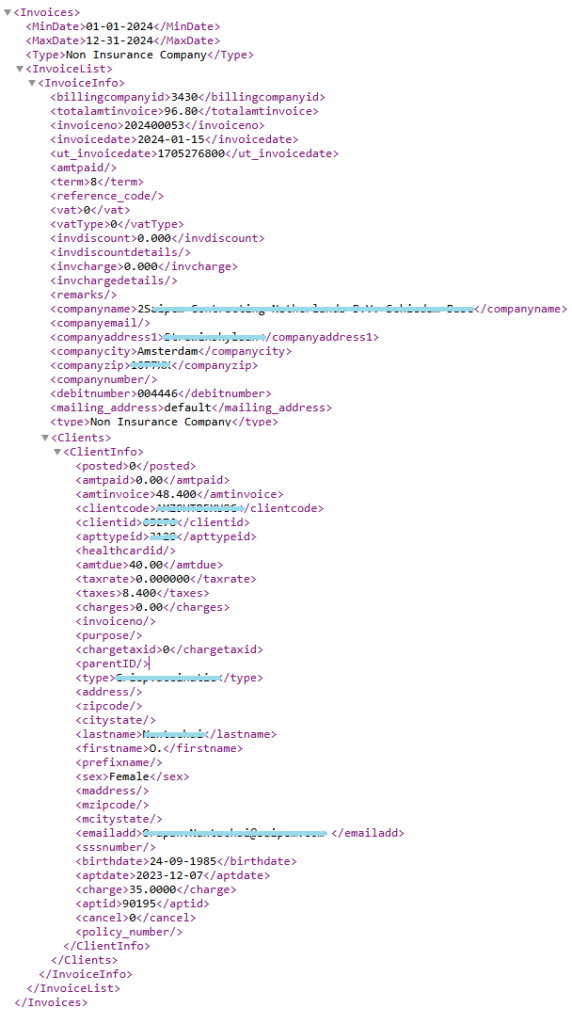
5) XML summary: to generate an XML file for insurance, company, or personal for any given date.
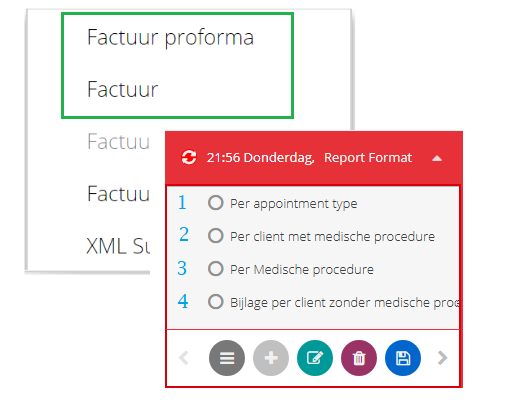
Click here to view a sample report for invoice …
> per appointment type (#1) ,
> per client met medische procedure (#2),
> per medische procedure (#3) , and
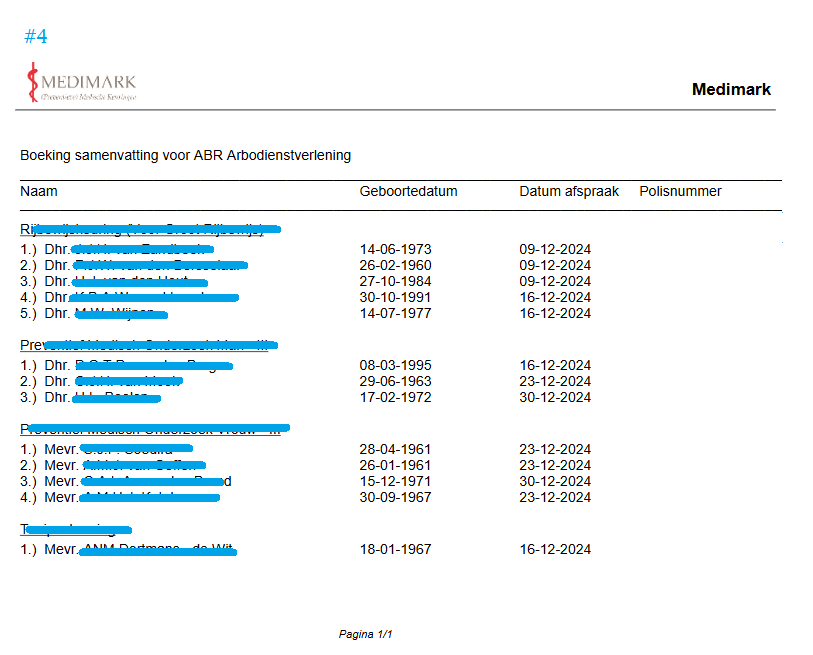
> bijlage per client zonder medische procedure (#4) .
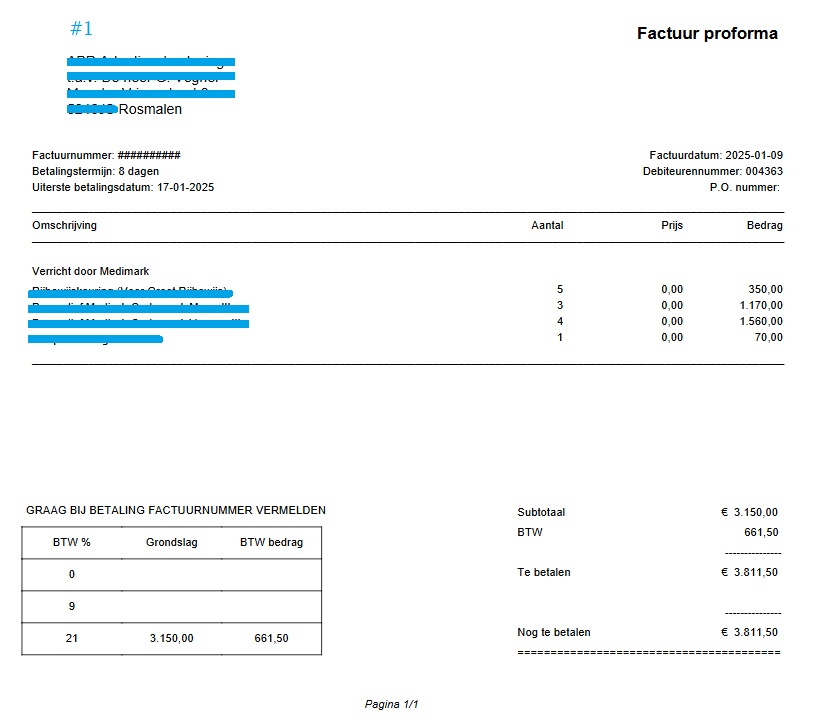
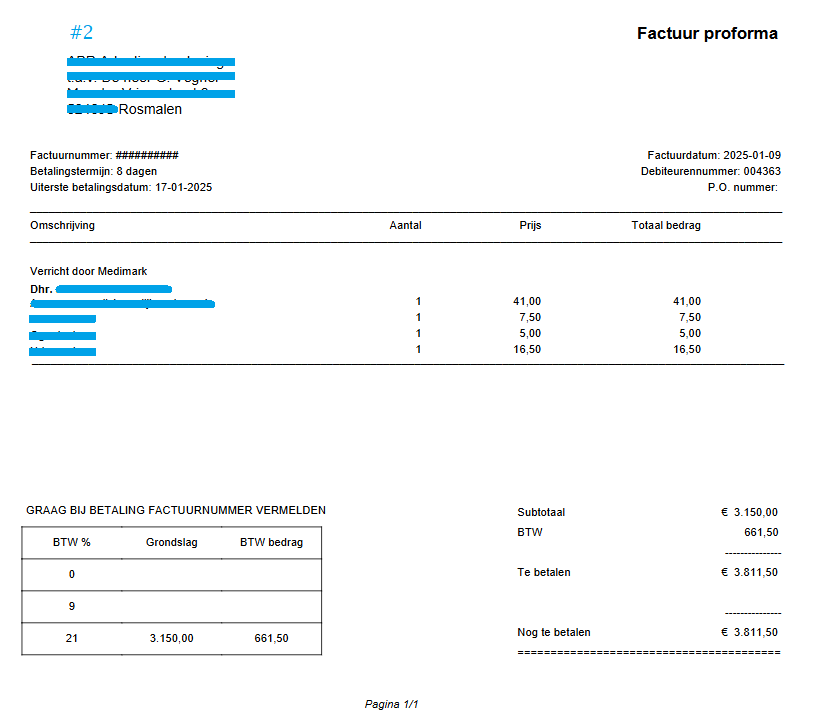
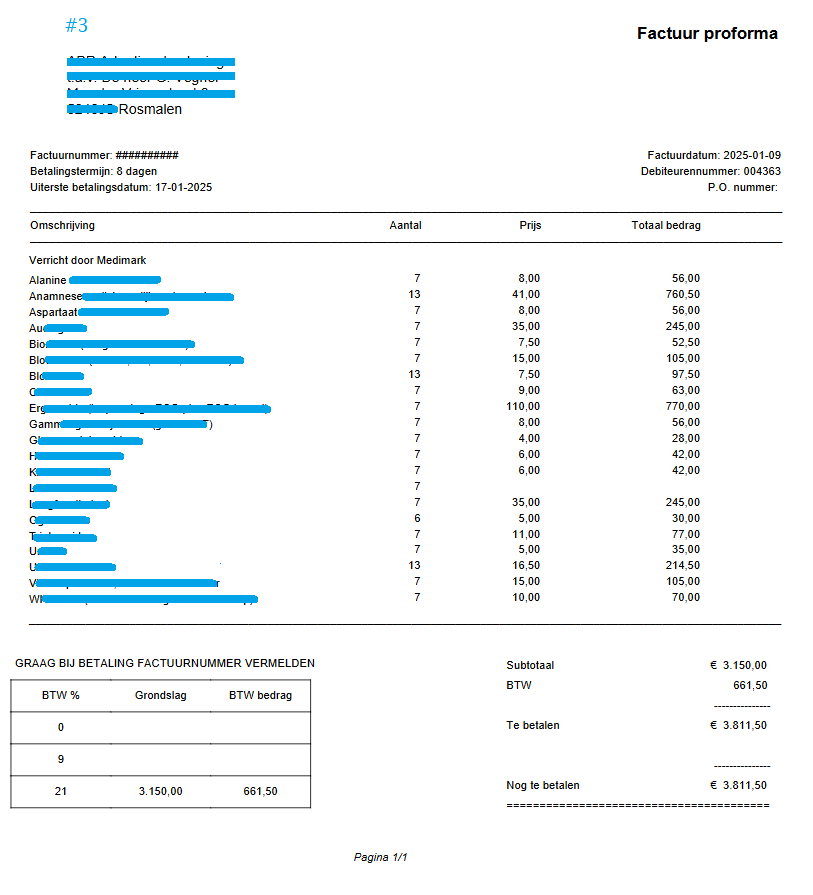
Click here to view the sample XML file
Sluiten or Close button to close any pop-up page.
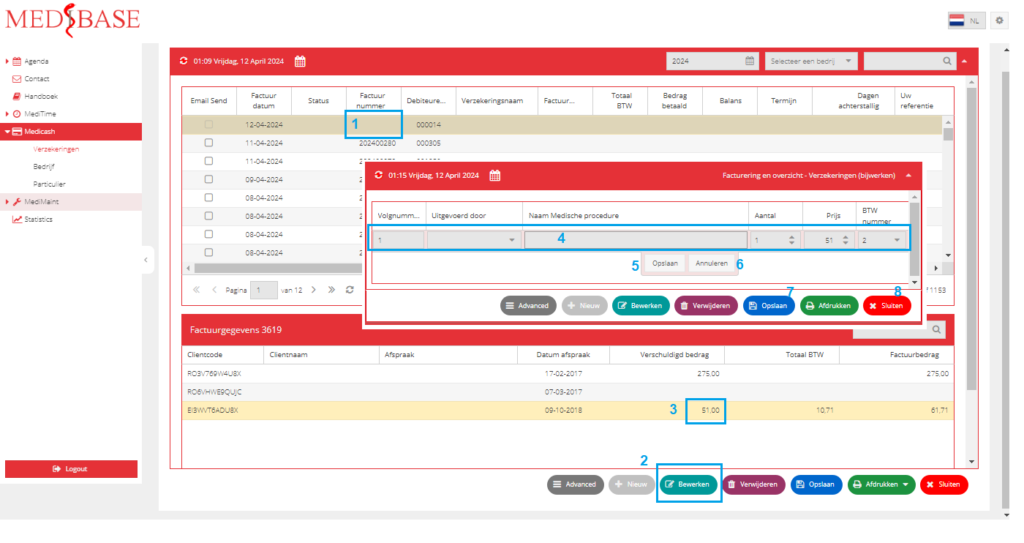
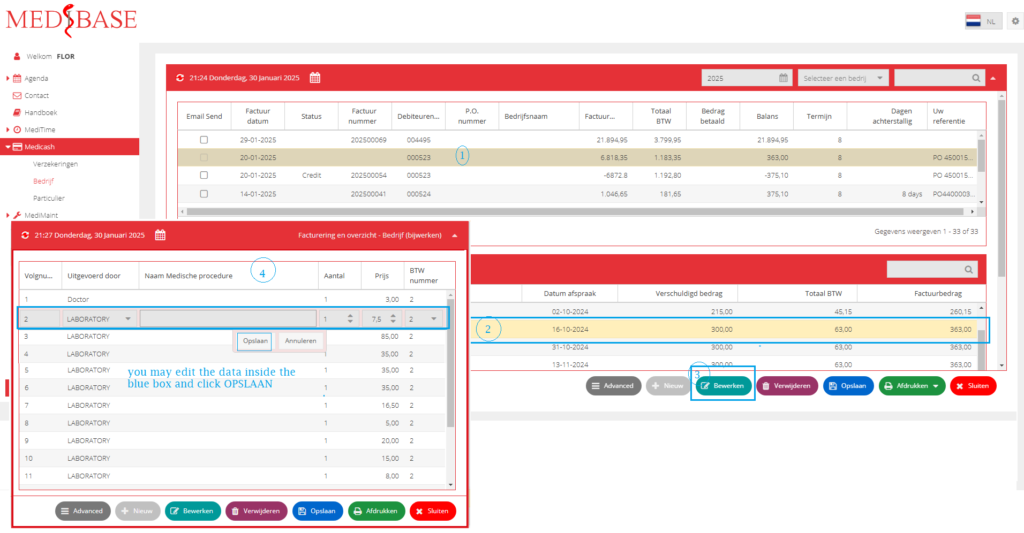
How to edit price, quantity, and other booking details in a proforma invoice.
- Select a proforma (no assigned invoice number) invoice to edit.
- Click the bewerken button.
- Or double click any booking under that invoice to edit.
- You can edit the procedure name, quantity, price, taxes, and more.
- Click opslaan to save the changes made.
- Click annuleren to cancel the changes made.
- Click opslaan to save
- Click Sluiten to close the pop-up window. See image below